- Home
- Platform
Rates & Loads
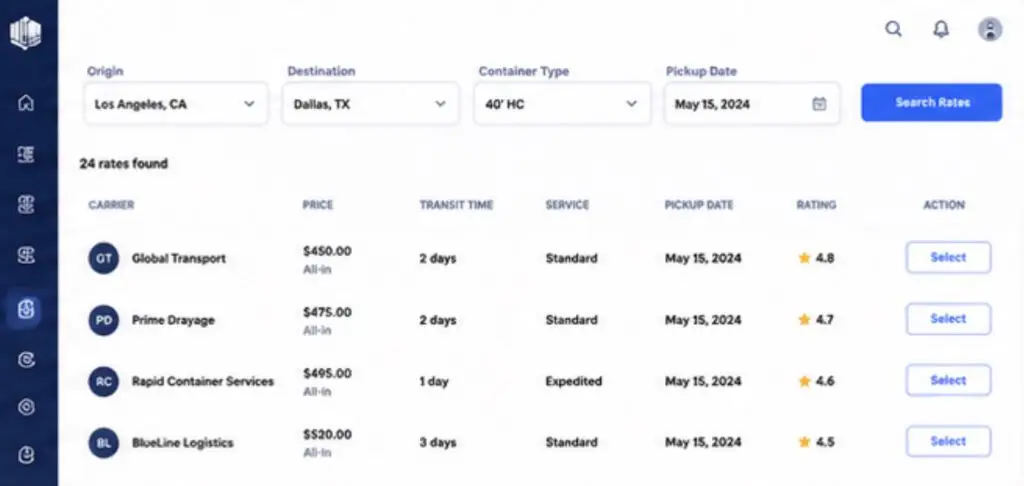
Instant rates
Compare drayage rates across multiple carriers in real time.
Load Board
Post loads and receive carrier offers directly.
Vessel Space & Containers
Vessel Space
Secure vessel space for import and export.
Street-Turn Containers
Reuse available import containers and reduce costs.
Tracking & Analytics
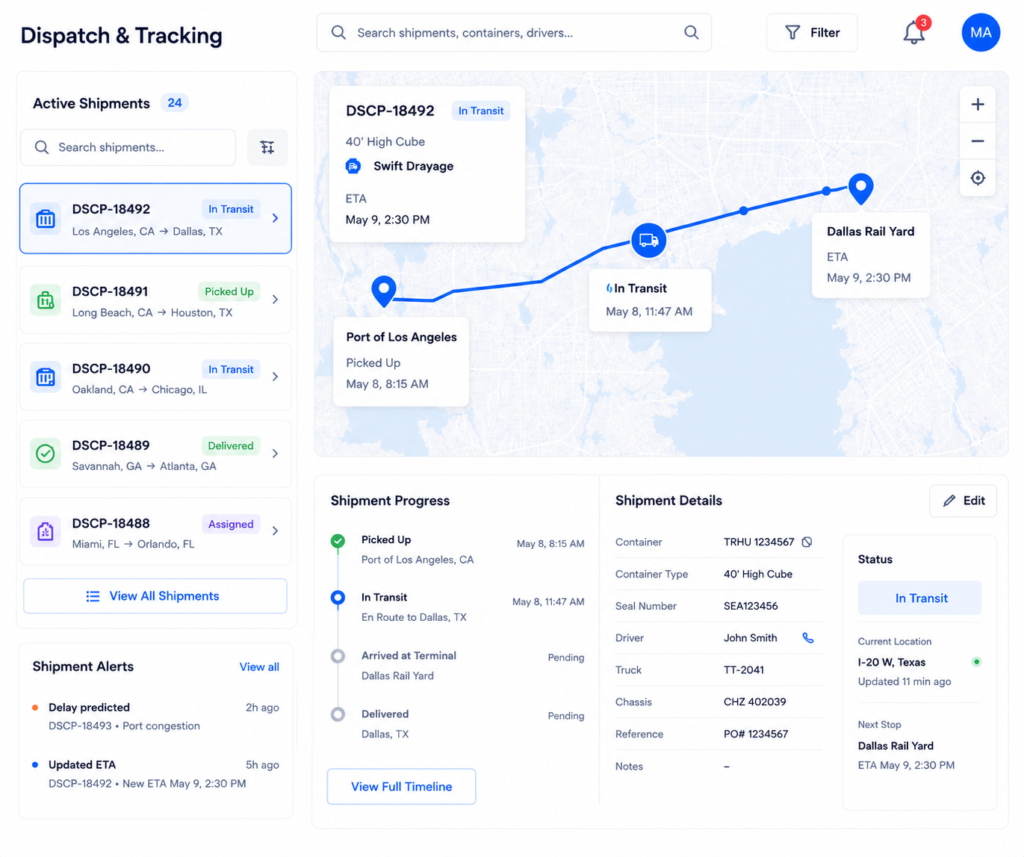
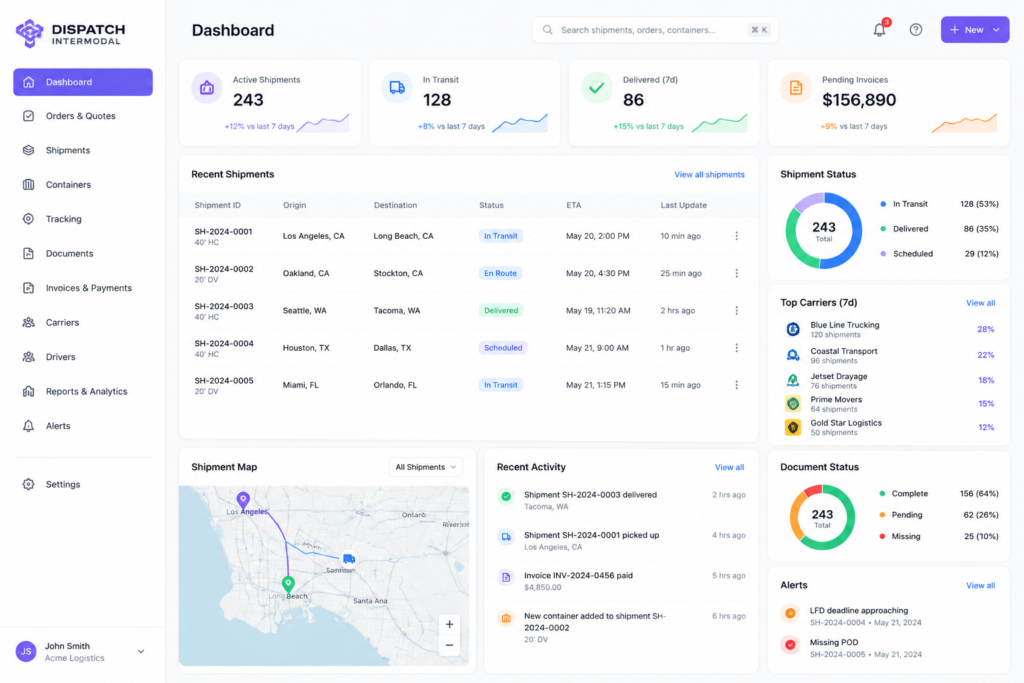
Shipment Tracking
Track shipments, container movements, Time In / Time Out and delivery updates in real time.
Container Monitoring
Monitor container status, LFD and per diem updates.
Freight Analytics
Analyze freight pricing trends and average market rates.
Carrier & Driver Operations
Drayage Requests
Receive drayage requests and manage shipment assignments.
Available Loads
Access available freight loads directly through the platform.
Driver Management
Assign drivers and manage shipment execution workflows.
Driver App
Enable drivers to update statuses and upload documents from mobile app.
Documents, Payments & Insurance
Document Management
Manage invoices, PODs, BOLs, shipment documents and cargo pictures online.
Online Payments
Process invoices and confirm payments directly through the platform.
Insurance
Protect shipments with integrated cargo insurance options.
Data Import & Integrations
API Integration
Connect carrier systems, TMS platforms and workflows via API.
Rate Uploads
Upload rates and shipment data using Excel templates.
Bulk Uploads
Upload multiple shipments using Excel templates.
- Pricing
- About Us
- FAQ
- Blog
- Contact Us